Local Processing
FFmpeg WebAssembly reads and converts the source inside your browser. The video is not sent to a conversion server.
 GIF Face Swap
Make a GIF
Video to GIFImages to GIFMP4 to GIFConvert a GIF
GIF to MP4GIF to WebPGIF to WebMEdit & inspect
GIF CompressorGIF AnalyzerTutorials & Guides
How to Face SwapHow to Face Swap a GIFHead Swap IdeasArticles & Comparisons
BlogFree GIF Face Swap ComparisonGoogle Face Swap GuideHelp & Answers
Face Swap FAQHelp & SupportTrim a short video, control frame rate, width, and looping, then export a GIF or animated WebP without sending the source video to a server.
Video to GIF workspace
Free · local processing · animated GIF
Loads the same authorized 4-second WebM used in the real example below.
Selected clip: 5.0s · maximum 15s
Keep the source on your device, choose the exact moment and output settings, then preview the real animation before downloading.
FFmpeg WebAssembly reads and converts the source inside your browser. The video is not sent to a conversion server.
Trim a segment up to 15 seconds, choose the frame rate and width, and set infinite or finite looping for the destination.
Make a GIF here, or open Video to WebP when you need an animated WebP instead.
Choose a video, tune the settings, and download in one local workflow without waiting for a server queue. Conversion time still depends on the clip and device.
Reduce duration, FPS, or output width when conversion strains the browser. These controls lower the number and size of frames held in memory.
Local conversions do not use credits or require payment. You can convert again whenever your browser and device resources allow.
Real conversion case · public-domain clip
The sample outputs were encoded from the same four-second source at 12 FPS and 480px wide. They are real files, not poster images standing in for conversion.
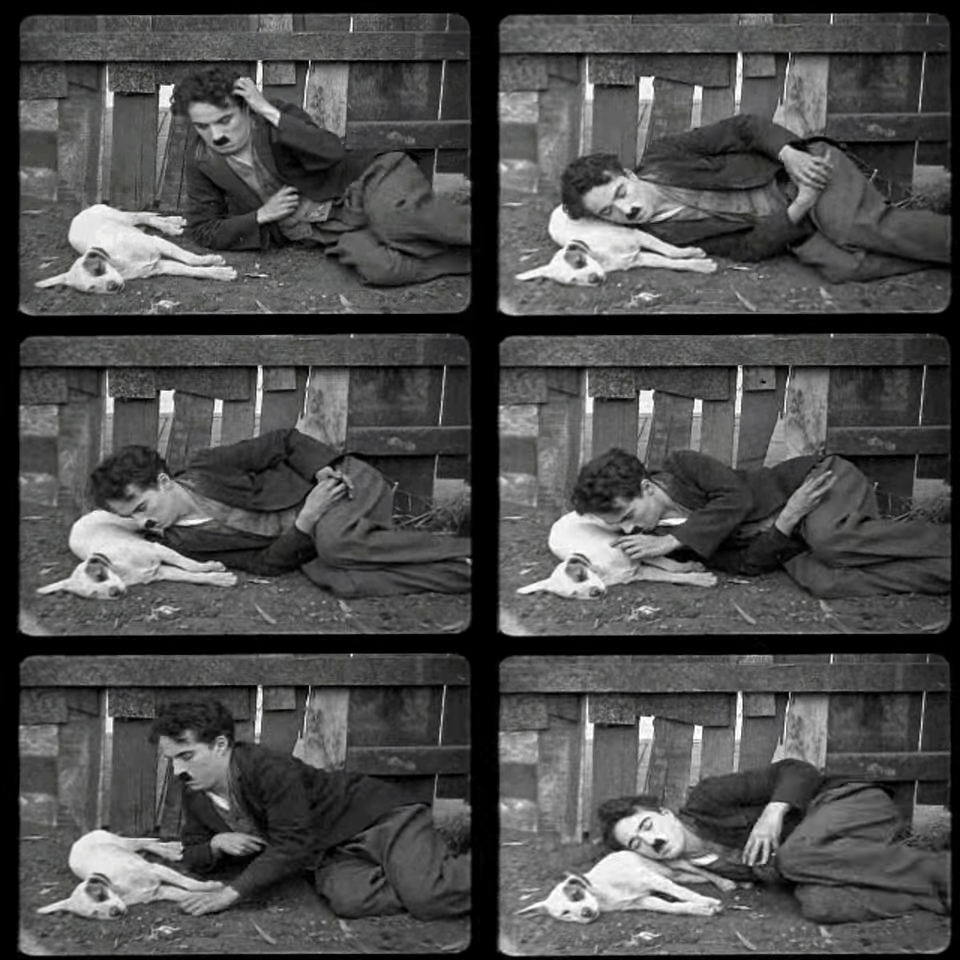

File size is an observed sample, not a universal saving claim. Motion, color, duration, width, FPS, and encoder support all change the result.
4.0 seconds
Selected clip
12 FPS
48 output frames
480 × 320
Output dimensions
Local only
No conversion upload
Control guide
Trim first. Then adjust FPS and width until motion quality and file size fit the destination.
Keep only the moment that needs to loop. A maximum 15-second selection protects browser memory.
Start at 12 FPS. Lower FPS reduces frames and file size; higher FPS preserves more motion.
480px is the balanced default. Choose 320px for chat or 640–800px when detail matters.
Choose infinite playback or a finite 1, 3, or 5 repetitions for destinations that respect loop metadata.
Use GIF when the destination explicitly asks for it or when predictable animation support matters more than file efficiency.
Animated WebP often preserves more color at a smaller size, but the receiving app still needs to accept it.
How it works
Step-by-step video-to-GIF guide
Load MP4, MOV, WebM, or M4V up to 100MB—or use the authorized sample.
Choose start, end, FPS, width, loop count, and output format.
FFmpeg WebAssembly encodes locally, then the real file appears for preview.
Trim one expressive beat for chat, community posts, or a lightweight reaction asset.
Turn an authorized video moment into a file that can enter the GIF Face Swap workflow.
Loop a short interaction when a full video player would be unnecessary.
The browser reads the selected video; this tool does not create a server generation job.
Cold start includes downloading and initializing the local WebAssembly engine.
Local conversion is free and does not consume AI generation credits.
Memory use grows with duration, FPS, width, and source decoding complexity.
Continue with the result
Questions before you start
Format support, clip limits, local processing, and output tradeoffs are answered here.