
How to Send GIFs on iPhone in Messages and Other Apps
Send GIFs on iPhone with #images in Messages, attach a saved GIF from Photos, share to other apps, and fix missing or non-animated GIFs.
GIF Face Swap Team / Published 2026-07-20 / Updated 2026-07-20
The short answer
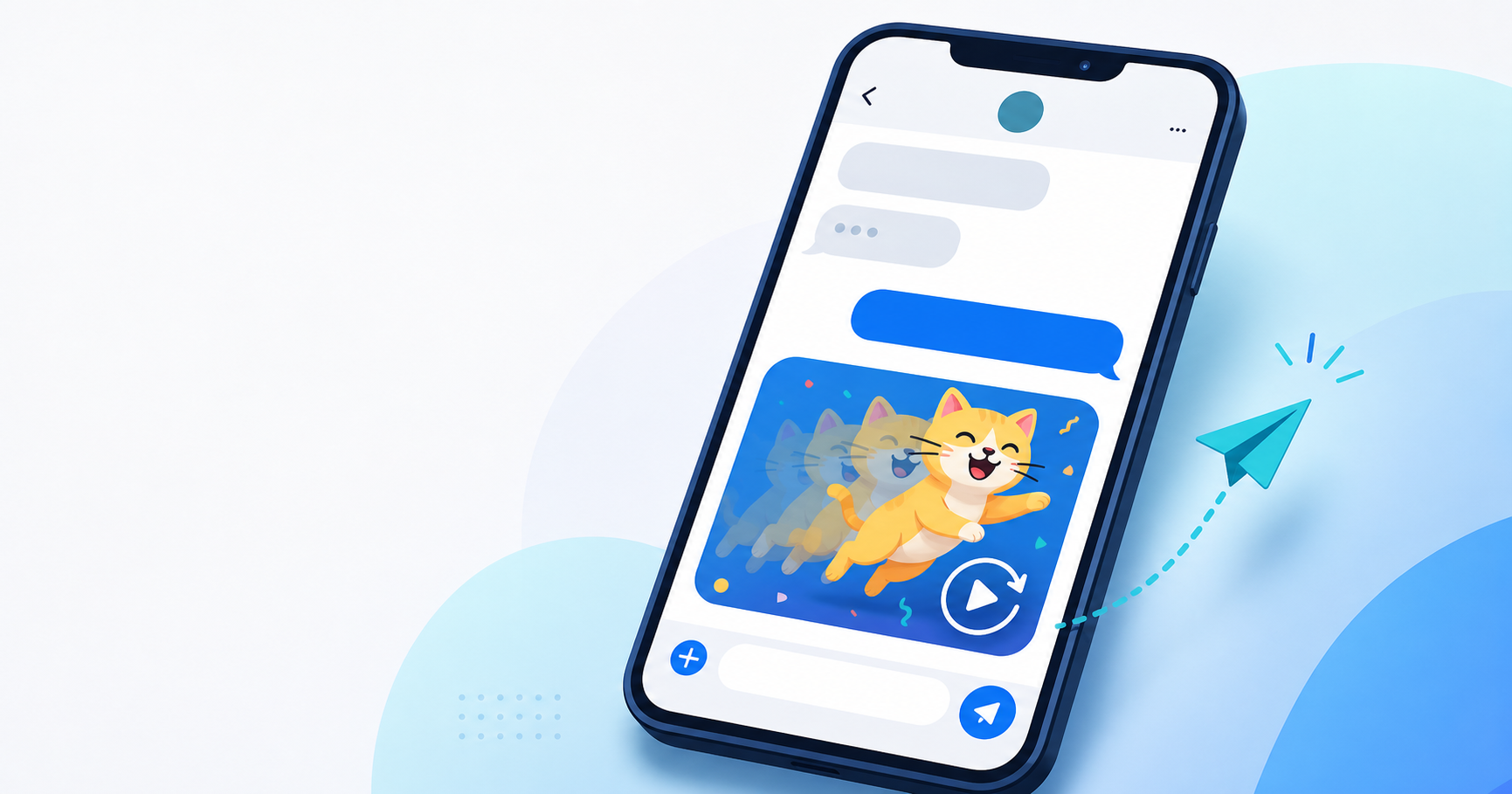
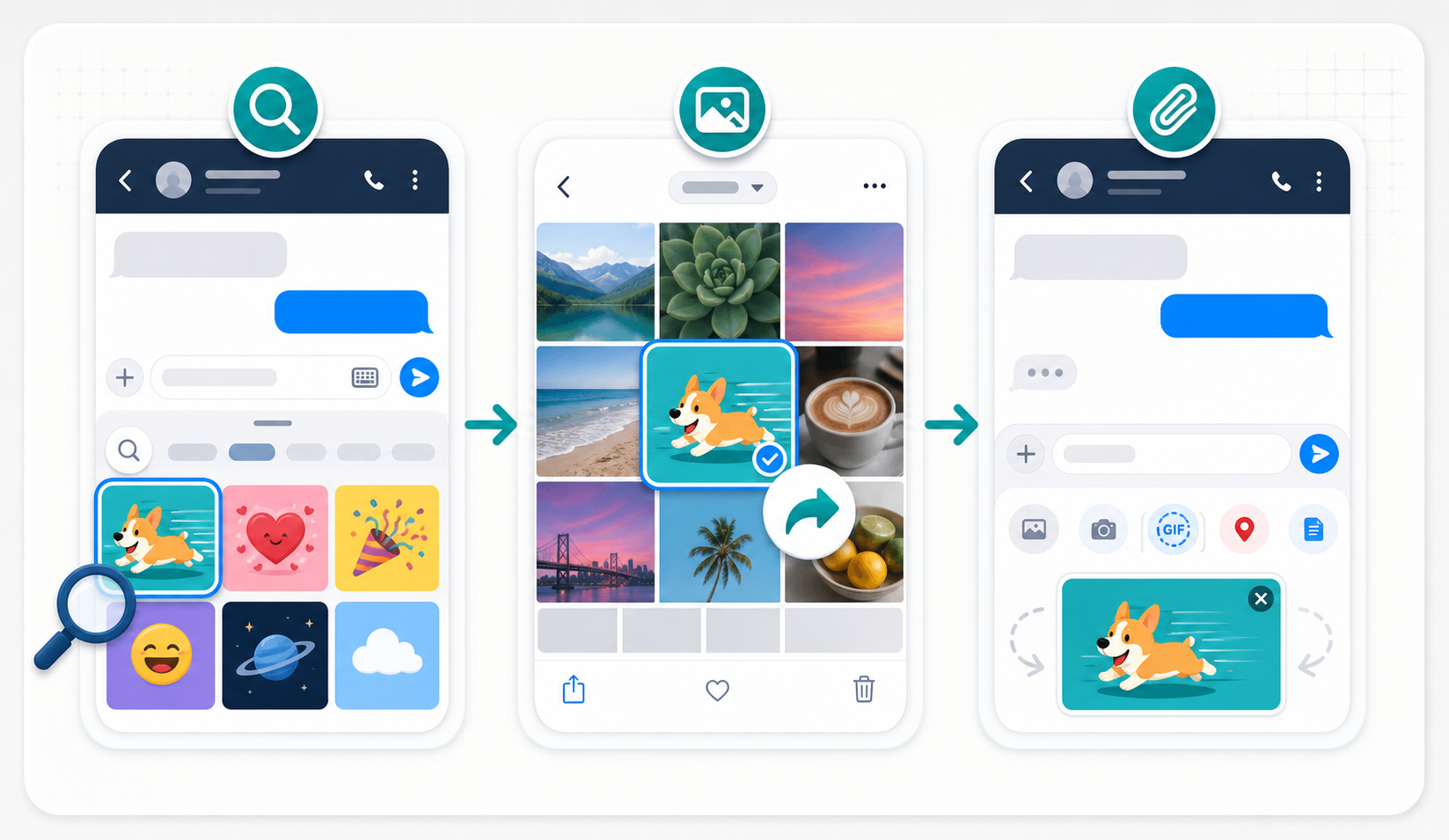
To send a GIF on iPhone, open Messages, choose a conversation, tap the Add button beside the text field, and select #images. Search for a reaction, tap the GIF you want, add a message if needed, and tap Send. If the GIF is already in Photos, attach it from the Photos option or share it directly from the Photos app.
Those two methods cover most situations: #images is fastest when you want to search for a reaction, while Photos is better when you already downloaded, created, or received the exact GIF you want to share.
How to send a GIF in Messages or iMessage
1. Open the Messages app and start a new conversation or open an existing one. The blue or green message color changes how the message is delivered, but the attachment controls stay beside the text field.
2. Tap the Add button, then choose #images. You may need to swipe up in the Add menu to find it. Tap Find Images, enter a search such as birthday, applause, or thank you, and review the results.
3. Tap a GIF to place it in the message field. Add text if you want more context, then tap the Send button. Pause before sending if the preview has not loaded yet; this helps you avoid sending the wrong reaction.
Apple notes that GIFs selected through #images animate only inside Messages on Apple devices. A recipient using another device or service may see different behavior, so use the original saved file or another app when cross-platform animation matters.
How to send a GIF saved in Photos
Open the conversation in Messages, tap the Add button, choose Photos, and select the saved GIF. It should appear as an attachment in the message field. Add any text, then send it.
You can also begin in Photos. Open the GIF, tap Share, and choose Messages or another installed app from the share sheet. Select the recipient, check the preview, and send. This route is useful when the GIF came from a browser, a creation tool, or a previous conversation.
Send the original saved GIF rather than a screenshot or a single copied frame. A screenshot is a still image, so it cannot preserve the animation. If you are unsure what was saved, check whether the file contains multiple frames before attaching it again.
How to send a GIF from Safari or another app
When a website or app offers a Share button, open the share sheet and choose Messages or the messaging app you want. If the destination is not shown, use More to find an installed app, or save the GIF first and attach it from Photos.
Copy and paste can work when the source provides the original animated image, but some pages copy only the displayed preview. If pasting creates a still image, return to the source, save or download the GIF, and share the saved file instead.
App menus change over time. The reliable pattern is to keep the original file, use the destination app's attachment control or the iPhone share sheet, and confirm the animation in the final preview before deleting your source.
Sending GIFs in WhatsApp, Messenger, Discord, and other apps
Many messaging apps have their own GIF search inside the emoji, sticker, media, or attachment menu. Use that picker when you want a quick reaction that is already hosted by the app. The exact icon and provider can differ between apps and versions.
For your own GIF, open the app's photo or file attachment control and select the saved animation. You can also share from Photos if the app appears in the share sheet. Check the preview because some apps recompress uploads, limit attachment size, or display a still thumbnail before the recipient opens the file.
If the app refuses the GIF, try a shorter or smaller copy. Keep the original so you can compare results. Animated WebP can be smaller, but it is not a universal replacement for GIF; use it only when the destination explicitly supports animated WebP.
If #images is missing
#images is available only in supported countries and regions. Apple currently lists the United States, United Kingdom, Canada, Australia, New Zealand, Ireland, France, Germany, Italy, India, Singapore, the Philippines, and Japan.
First open Settings, choose General, then Language & Region, and confirm that the iPhone is set to a supported language and region. Return to Messages, open the Add menu, and swipe up to check whether #images is present.
If your region is not supported, use a GIF saved in Photos or the GIF picker inside another messaging app. Changing region settings only to reveal a feature can affect formats and services elsewhere on the phone, so use a saved file when that is the simpler option.
Why a GIF may appear still or fail to send
A GIF can become still when you share a screenshot, copy a preview frame instead of the original file, or open it in an app that does not animate that format. Start by checking the saved file itself. A real animated GIF contains more than one frame; a JPEG, PNG, or screenshot does not.
Large dimensions, many frames, long duration, and rapid color changes all increase file size. If the app rejects the upload, make a smaller copy after you are satisfied with the loop. Shortening the animation usually preserves more visual quality than applying extreme compression to a long GIF.
The sender's preview and the recipient's view may differ. Test the actual destination with a non-sensitive file. If animation is essential and the app keeps flattening it, send the original as a file or share a link rather than repeatedly copying the preview.
Before you send a personal or downloaded GIF
Use GIFs you created, downloaded lawfully, or have permission to share. A private conversation does not remove copyright, privacy, or consent concerns, especially when a GIF includes a recognizable person.
Sharing from Photos can include associated metadata such as date, time, location, device, or captions. Review the sharing options when the image is personal. If you edit or personalize a GIF, keep the original until you have checked the final animation and recipient.
GIF sending troubleshooting
| Problem | Try this | Avoid |
|---|---|---|
| #images is missing | Check the Add menu and confirm a supported language and region. | Changing unrelated settings or installing random keyboards first. |
| The GIF appears still | Attach the original saved GIF and confirm that it has multiple frames. | Sending a screenshot or copying a single preview frame. |
| The file will not send | Shorten the loop or compress a copy after checking the animation. | Over-compressing the only copy or repeatedly retrying a very large file. |
| The recipient sees a still image | Send the original as a file or use an app that supports animated GIF playback. | Assuming every device and messaging service renders GIFs the same way. |
| Another app rejects the GIF | Use its attachment control, reduce file size, or follow its supported-format rules. | Renaming the extension without actually converting the file. |
Key takeaways
Recommended next
Related guides and tools
FAQ
How do I send GIFs in iMessage on iPhone?
Open a conversation in Messages, tap the Add button, choose #images, search for a GIF, tap it, and then tap Send. You can also attach a saved GIF from Photos.
Can I send a GIF saved in Photos?
Yes. In Messages, tap Add and choose Photos, or open the GIF in Photos, tap Share, and choose Messages or another installed app.
Why is #images missing from Messages?
#images is limited to supported countries and regions. Check Settings > General > Language & Region, then return to the Messages Add menu. If it is unavailable in your region, share a saved GIF from Photos instead.
Why does my GIF send as a still image?
You may have shared a screenshot, copied a preview frame, or sent the file to an app that does not animate GIFs. Attach the original saved file and test the destination again.
Can I send a GIF over a regular text message?
Messages can attach images to non-iMessage conversations, but delivery and animation can depend on your carrier, settings, recipient, and messaging standard. Use a smaller original file or another messaging app if it fails.
Do #images GIFs animate on Android or outside Messages?
Apple says GIFs selected through #images animate only in Messages on Apple devices. For cross-platform sharing, send an original saved GIF through an app that supports animated GIF playback.
Sources and further reading
Apple's current iPhone guidance was used for the Messages, Photos, region, sharing, and compatibility details in this guide.